
You can’t fully turn off YouTube Shorts inside the official YouTube app. The closest built-in option is to set the Shorts feed limit to 0 minutes (Settings → Time management → Shorts feed limit), which hides Shorts until you choose to ignore the limit. To remove Shorts completely, use a browser or extension that strips them out: the free RelockIn app on iPhone and Android, a Chrome extension like Unhook on a computer, or SmartTube on Android TV.
Shorts are YouTube’s vertical, TikTok-style videos, and they’re built to keep you swiping. Below are the methods that work on each device, how to set each one up, and what each one can’t do.
Which method should you use?
| Device | Best option | Removes Shorts completely? | Cost | The catch |
|---|---|---|---|---|
| iPhone, iPad, Android | RelockIn browser | Yes, inside RelockIn | Free | Doesn’t change the YouTube app itself |
| iPhone, iPad, Android | YouTube’s Shorts feed limit (0 minutes) | No, it’s a reminder | Free | One tap on “Ignore limit” brings Shorts back |
| Computer (browser) | Unhook or RelockIn for Web | Yes, on youtube.com | Free | Only works in the browser you install it in |
| Computer (browser) | Youtube-ShortsBlock | No, it plays them as normal videos | Free | Stops the swiping, not the Shorts |
| Android TV | SmartTube | Mostly | Free | Third-party app; some Shorts may remain |
How do you remove YouTube Shorts on iPhone or Android?
Use a browser that removes Shorts from YouTube. The YouTube app doesn’t let you remove them, so the fix is to watch YouTube somewhere that does.
RelockIn is a browser for iPhone, iPad and Android that strips addictive features out of sites like YouTube. Disclosure: we make it. Here’s how to turn Shorts off:
- Install RelockIn from the App Store or Google Play and open it.
- Open the hub (the hourglass button) and go to Customize Sites.
- In the YouTube section, turn on Hide Shorts, and optionally Hide Shorts tab.
That’s it. Shorts disappear from the Home feed, suggestions and search results, and the Shorts tab is gone.
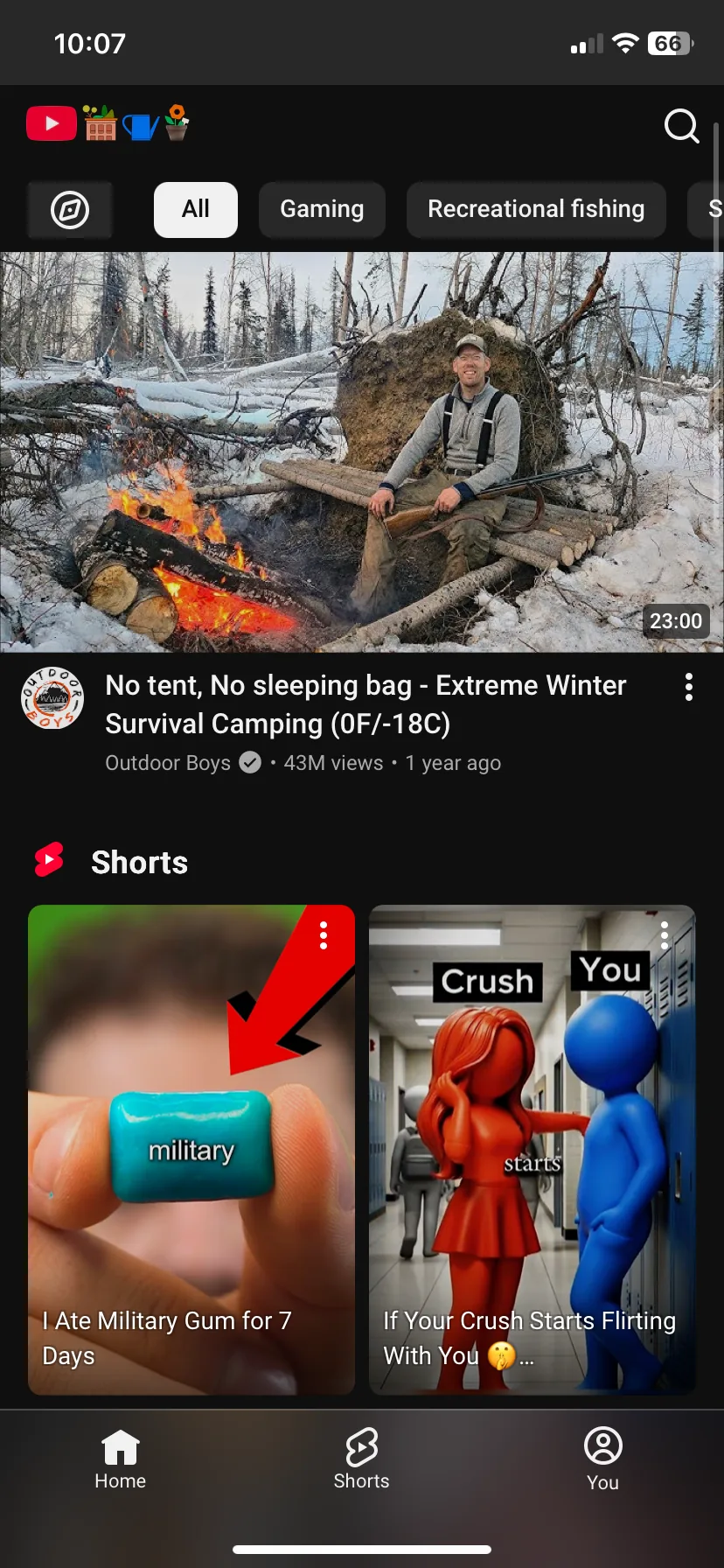
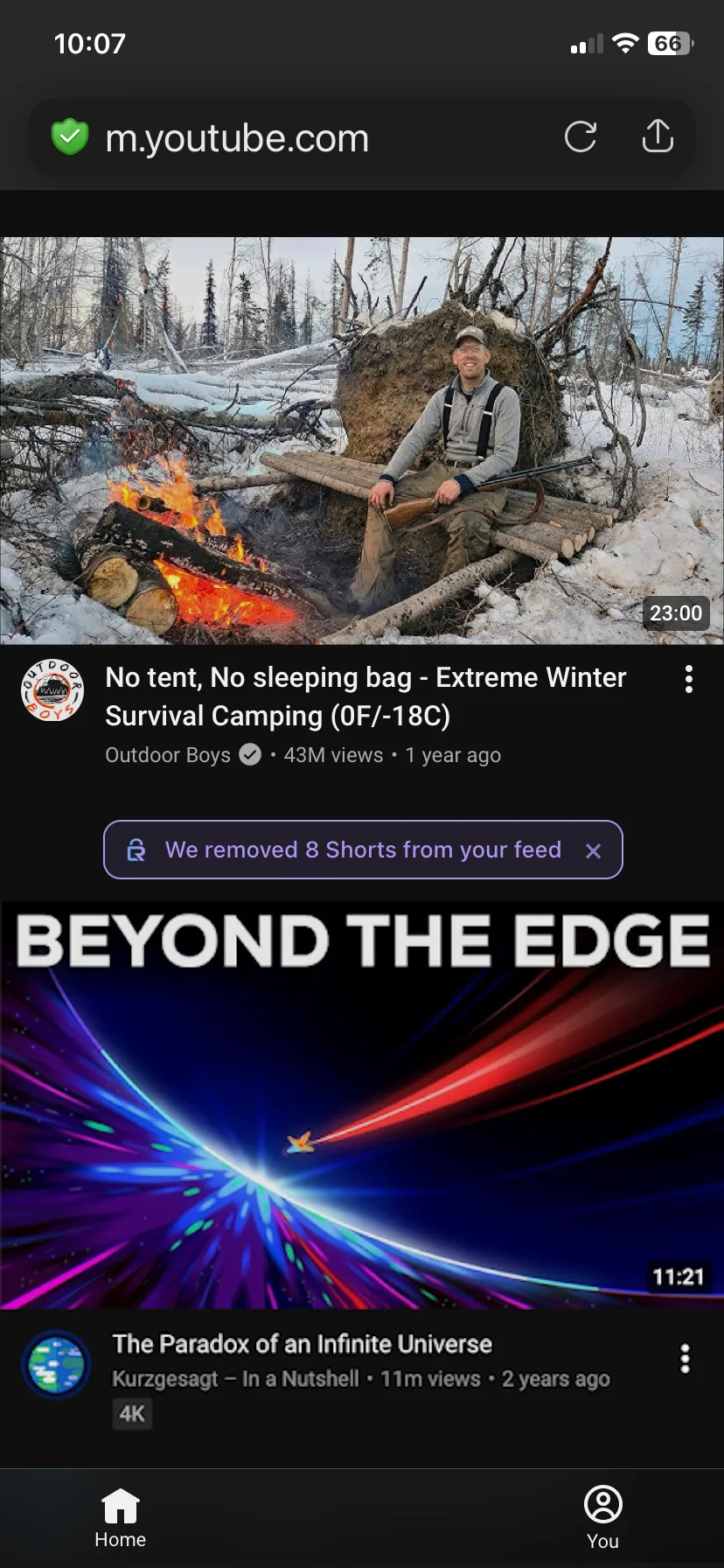
The same settings page can also hide YouTube ads, clickbait thumbnails and the algorithmic Home feed, and it covers other sites such as Instagram Reels. RelockIn can also put time limits and schedules on distracting apps, including the YouTube app itself.
Removing Shorts is free. RelockIn Pro adds more site customizations and screen time controls.
How do you limit YouTube Shorts inside the YouTube app?
Set the Shorts feed limit to 0 minutes. It’s the only built-in control YouTube offers for Shorts, and it’s available in the YouTube app for iPhone, iPad and Android.
- Open the YouTube app and make sure you’re signed in.
- Tap You (your profile picture) in the bottom bar.
- Tap the Settings gear in the top right.
- Tap Time management.
- Tap Shorts feed limit and choose 0 minutes.
If Shorts are still showing, close and reopen the app.
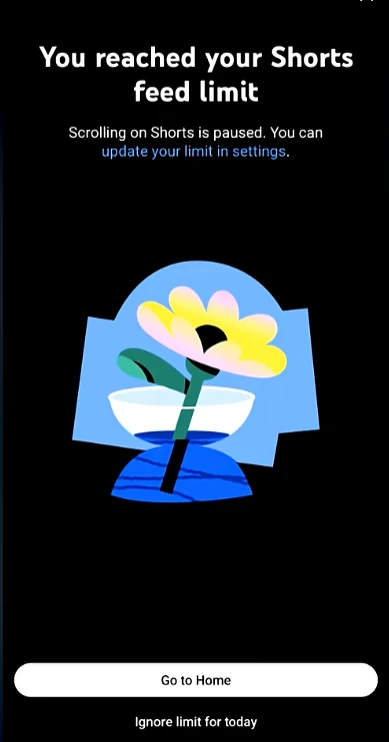
This helps, but it isn’t a real off switch:
- It’s easy to bypass. When you hit the limit, YouTube shows a reminder with an Ignore limit for today button. One tap and you’re back to scrolling.
- Shorts don’t disappear everywhere. They can still show up in search results and in the Shorts tab.
- It’s mobile only. The setting doesn’t exist on youtube.com in a desktop browser.
How do you remove YouTube Shorts on youtube.com on a computer?
Install a browser extension. Here are three free options from the Chrome Web Store: the first two hide Shorts completely, and the third stops the endless swiping. They also work in most Chromium-based browsers, like Edge and Brave.
Unhook
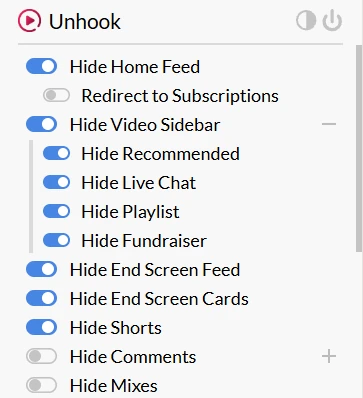
Unhook hides Shorts along with other distractions, like the Home feed, recommended videos, end screens and comments. Each one has its own switch, so turn on Hide Shorts and leave the rest as you like.
RelockIn for Web
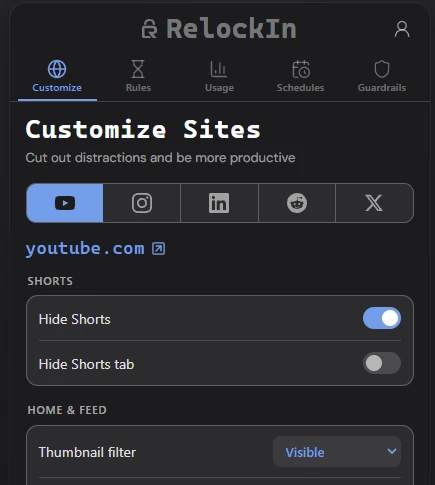
RelockIn for Web is our extension, for Chrome and Firefox. It brings RelockIn’s site customizations to your computer: open it, go to Customize Sites, pick YouTube and turn on Hide Shorts and Hide Shorts tab. It can also block distracting sites and set time limits.
Youtube-ShortsBlock
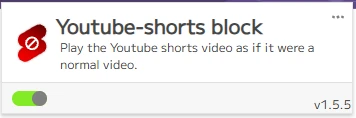
Youtube-ShortsBlock doesn’t hide Shorts. It plays them in YouTube’s normal video player instead of the Shorts feed, so you can’t swipe straight to the next one. Pick it if you still want to watch the occasional Short someone sends you.
Extensions only work in the browser you install them in, so Shorts are still there if you open YouTube in another browser or on your phone.
How do you remove YouTube Shorts on Android TV?
Use SmartTube, a free, open-source YouTube app for Android TV and Google TV that can hide Shorts. It isn’t on the Play Store, so you install it from the developer’s site.
- Install SmartTube from its official site, smarttubeapp.github.io.
- Open Settings → General → Hide content.
- Turn on Hide Shorts everywhere.
Some people still see Shorts in places like the Gaming section after turning this on.
Summary: the best way to remove Shorts on each device
- iPhone, iPad and Android: Use the RelockIn browser and turn on Hide Shorts for YouTube. It’s free.
- Inside the YouTube app: Set the Shorts feed limit to 0 minutes. It’s free and built in, but easy to ignore.
- Computer: Install Unhook or RelockIn for Web in Chrome (RelockIn for Web also works in Firefox) to hide Shorts, or Youtube-ShortsBlock to stop the swiping.
- Android TV: Install SmartTube from its official site and turn on Hide Shorts everywhere.
Shorts are designed to be hard to stop watching, so the methods that actually work take them out of reach instead of relying on willpower. Pick the one that matches the device you scroll on most. If you also scroll Instagram, see how to remove Instagram Reels.