
You can’t turn off Instagram Reels in Instagram’s settings: there’s no switch that removes Reels or the Reels tab. To actually remove them, use Instagram somewhere that strips Reels out: the free RelockIn browser on iPhone and Android, a Chrome extension like IGPlus on a computer, or, on Android only, an app like ScrollGuard that hides Reels inside the Instagram app. Instagram’s own tools, like a daily time limit and snoozing suggested posts, can only cut down how many Reels you see.
Reels are Instagram’s full-screen, vertical videos. They have their own tab and also show up in your Home feed and Explore. Below is what works on each device, how to set it up, and the catch with each one.
Which method should you use?
| Device | Best option | Removes Reels? | Cost | The catch |
|---|---|---|---|---|
| iPhone, iPad, Android | RelockIn browser | Yes, inside RelockIn | Free | Doesn’t change the Instagram app itself |
| Android | ScrollGuard (in-app blocker) | Yes, inside the Instagram app | Free, with paid extras | Needs Android’s Accessibility permission |
| iPhone, Android | Instagram’s daily limit | No, it’s a reminder | Free | Covers all of Instagram and can be dismissed |
| iPhone, Android | Snooze suggested posts, Following feed | No, it reduces them | Free | Snooze lasts 30 days; the Reels tab stays |
| Computer (browser) | RelockIn for Web, IGPlus or Untrap Insta | Yes, on instagram.com | Free | Only works in the browser you install it in |
How do you remove Instagram Reels on iPhone or Android?
Use a browser that removes Reels from Instagram. Instagram’s app doesn’t let you remove them, and on iPhone no other app is allowed to change what the Instagram app shows, so the fix is to use Instagram somewhere that does.
RelockIn is a browser for iPhone, iPad and Android that strips addictive features out of sites like Instagram. Disclosure: we make it. Here’s how to hide Reels:
- Install RelockIn from the App Store or Google Play, open it, and sign in to instagram.com.
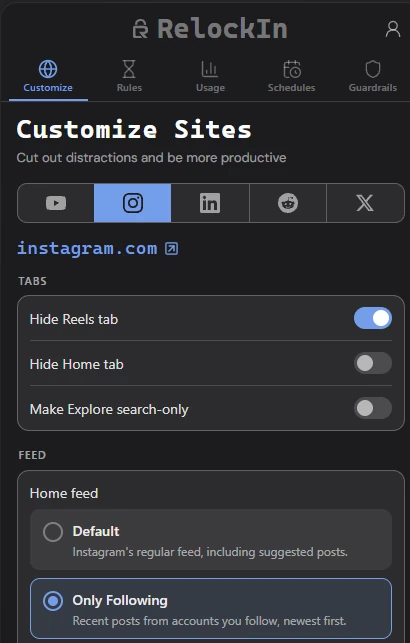
- Open the hub (the hourglass button) and go to Customize Sites.
- Pick Instagram and turn on Hide Reels tab.
- Optional: turn on Make Explore search-only, so Explore keeps search but drops its grid of recommended posts and Reels.
- Optional: under Home feed, choose Only Following so your feed only shows accounts you follow, not suggested posts and Reels from strangers.
What else can RelockIn change on Instagram?
Hiding the Reels tab is one of many Instagram options, and you only turn on the ones you want:
- Hide videos in your feed, so Reels and other videos stay behind a cover as you scroll. You can exempt accounts you follow.
- Only see people you follow, with a Home feed of Only Following or Only Favorites instead of Instagram’s algorithm.
- Cover posts from strangers if you’d rather keep the regular feed.
- Hide ads, so sponsored posts stop interrupting your feed.
- Show, cover or remove Stories, so you only check them when you mean to.
- Hide comments, with the option to keep them on posts from accounts you follow.
- Make pictures and videos greyscale, which makes Instagram less eye-catching.
- Make Explore search-only, so you can still look things up without the recommendations.
- Choose how hard covers are to remove: instantly, after a 5- or 10-second wait, after a challenge, or not at all.
Instagram is one of several sites RelockIn customizes. It has similar settings for YouTube (Shorts, the Home feed, autoplay, ads), Reddit, X and LinkedIn, plus an optional time limits system: lock distracting apps and sites, including the Instagram app, until you start a session with a goal and a time limit.
Hiding Reels is free. Some of the other options need RelockIn Pro, which you can try for free.
Can you hide Reels inside the Instagram app on Android?
Yes, with an app that uses Android’s Accessibility permission to watch the screen and block Reels as they appear. This is the only way to hide Reels inside the real Instagram app, and it only works on Android.
ScrollGuard is one of the better-known options. It runs on top of the Instagram app and blocks Reels while leaving the rest of Instagram usable. It’s free to download, with some features behind a paid plan. On iPhone it works differently: it gives you a cleaned-up web version of Instagram rather than changing the app.
How do you limit Reels with Instagram’s own settings?
Instagram has no Reels switch, but four built-in settings cut down on them. None removes the Reels tab.
Set a daily time limit
- Open Instagram and go to your profile.
- Tap the menu (☰) in the top right.
- Tap Your activity, then Time spent.
- Tap Daily limit, choose an amount of time, and tap Turn on.
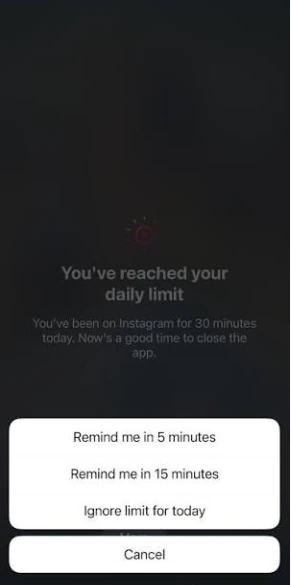
The limit covers all of Instagram, not just Reels, and it’s only a reminder. When you hit it, Instagram offers Remind me in 5 minutes, Remind me in 15 minutes and Ignore limit for today. iPhone’s Screen Time and Android’s Digital Wellbeing can set a firmer limit on the whole app.
Snooze suggested posts for 30 days
Suggested posts are where most Reels from accounts you don’t follow end up in your Home feed. To pause them:
- Tap the menu (☰) on your profile and open Settings and privacy.
- Tap Suggested content.
- Turn on Snooze suggested posts in feed.
You can also tap the X on any suggested post and choose to snooze all suggested posts. Either way, they come back after 30 days, and Reels in the Reels tab and Explore aren’t affected.
Switch to the Following feed
Tap the Instagram logo at the top of your Home feed and choose Following to see only accounts you follow, newest first. It cuts out suggested Reels, but Reels from accounts you follow still appear, and Instagram may switch you back to the regular feed when you reopen the app.
Tune Reels with “Your Algorithm”
In the Reels tab, the Your Algorithm button (top right) shows the topics Instagram thinks you like and lets you ask for more or less of each. Tapping Not interested on individual Reels does something similar. Both change which Reels you see, not how many, so they won’t help if the goal is fewer Reels.
How do you remove Reels on instagram.com on a computer?
Install a browser extension that hides Reels. All three below are free in the Chrome Web Store and also work in most Chromium-based browsers, like Edge and Brave. RelockIn for Web and Untrap Insta are also available for Firefox.
RelockIn for Web
RelockIn for Web is our extension, for Chrome and Firefox. Open it, go to Customize Sites, pick Instagram and turn on Hide Reels tab. It has every Instagram option listed above, plus settings for YouTube, Reddit, X and LinkedIn and optional time limits, schedules and guardrails.
IGPlus
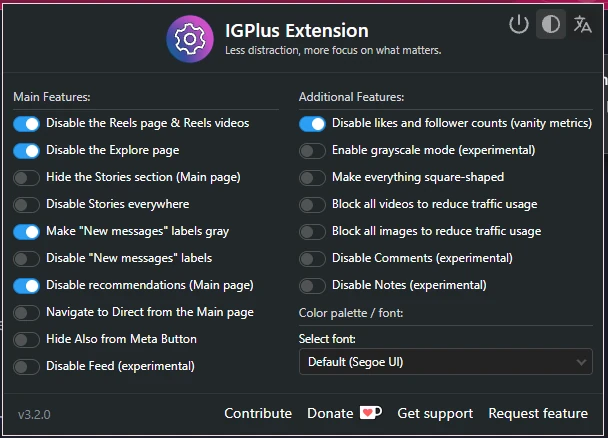
IGPlus is also a good option. Turn on Disable the Reels page & Reels videos; its other switches can disable the Explore page, Stories, recommendations and like counts. It’s open source and has around 10,000 users.
The main difference is scope. RelockIn for Web customizes more sites and includes optional time limits, schedules and guardrails, while IGPlus only covers Instagram. On Instagram itself, RelockIn can limit your feed to accounts you follow and hide ads, which IGPlus doesn’t do. IGPlus can block videos and images to reduce data usage, which RelockIn doesn’t do.
Untrap Insta
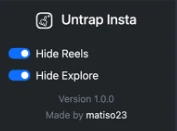
Untrap Insta is the simplest: two switches, Hide Reels and Hide Explore. It’s open source and also available for Firefox.
Extensions only work in the browser you install them in, so Reels are still there in the Instagram app and in other browsers.
Summary: the best way to remove Reels on each device
- iPhone and iPad: Use the RelockIn browser with Hide Reels tab turned on, and lock or delete the Instagram app.
- Android: Use RelockIn the same way, or an in-app blocker like ScrollGuard if you want to keep using the Instagram app.
- Inside the Instagram app: Set a daily limit, snooze suggested posts and use the Following feed. They reduce Reels but don’t remove them.
- Computer: Install RelockIn for Web, IGPlus or Untrap Insta in Chrome. In Firefox, use RelockIn for Web or Untrap Insta.
Reels are built to keep you watching, so the methods that work take them out of reach instead of relying on willpower. If you also watch YouTube Shorts, see how to remove YouTube Shorts.